
You have two phones. One SIM has data — the other doesn’t. Or maybe you’re roaming on a secondary device and don’t want to pay for two data plans.
There’s a workaround that actually works: use the phone with active data as a mobile hotspot, then connect the second device through a VPN to keep traffic secure. No carrier tricks. No SIM swapping. Just your existing data plan, shared across devices.
This guide walks through exactly how to do it on Android and iPhone, including when a VPN matters and when it doesn’t.
What You’re Actually Doing
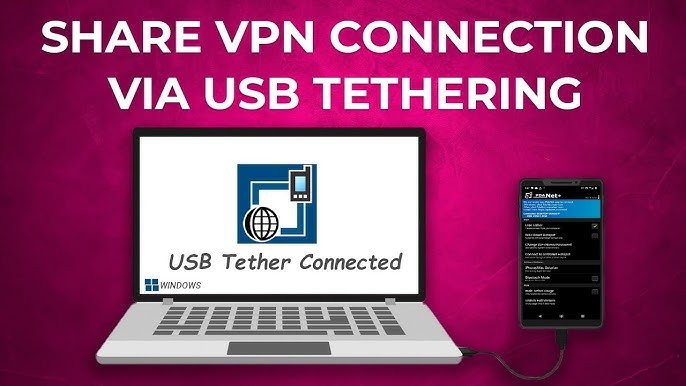
When you tether, your primary phone acts as a router. It pulls cellular data from your SIM and broadcasts a Wi-Fi (or USB) signal that other devices connect to — just like a home router, but powered by your mobile plan.
A VPN adds an encrypted tunnel between the secondary device and a remote server. That means your internet traffic on the second device travels through your primary phone’s data connection, then gets encrypted before it reaches its destination.
Why does this matter? Two reasons:
- Some carriers throttle or block hotspot traffic. A VPN can mask the traffic type, sometimes bypassing soft throttle limits.
- Public hotspot security. If you’re tethering in a hotel, airport, or café environment, VPN protects what the second device sends.
Neither step is complicated. Android and iOS both have built-in hotspot features, and VPN apps are free or cheap.
Step 1: Enable Mobile Hotspot on the SIM-Active Phone
On Android
- Open Settings
- Go to Network & Internet (or Connections on Samsung)
- Tap Hotspot & Tethering
- Tap Wi-Fi Hotspot and toggle it on
- Set a hotspot name (SSID) and a password — don’t leave it open
Some Android devices let you also tether via USB or Bluetooth. USB tethering is faster and doesn’t drain the battery as fast.
Samsung One UI path: Settings → Connections → Mobile Hotspot and Tethering → Mobile Hotspot
Note for Nigerian users: MTN, Airtel, and Glo all support hotspot tethering. GLo and 9mobile may restrict it on certain prepaid plans — check with your carrier or try it and see if data depletes from your main balance.
On iPhone
- Go to Settings
- Tap Personal Hotspot
- Toggle Allow Others to Join
- Set a Wi-Fi password under the same menu
iPhones default to 2.4 GHz Wi-Fi for the hotspot. If your second device supports 5 GHz, check iPhone settings under Personal Hotspot for a “Maximize Compatibility” toggle — turn it off to enable 5 GHz for faster speeds.
Step 2: Connect the Second Device to the Hotspot
On the second phone or device:
- Open Wi-Fi settings
- Find the hotspot name you just set
- Enter the password
- Connect
You’re now using the first SIM’s data on the second device. Test it by loading a page before moving to the VPN step.
If connection is slow, check signal strength on the primary device first. Hotspot speed is capped by the cellular signal, not just the Wi-Fi link.
Step 3: Set Up a VPN on the Secondary Device
A VPN on the secondary device encrypts its traffic before it leaves for the internet. The primary phone just passes the encrypted data along — it can’t read it.
Free VPN Options That Work
- ProtonVPN (free tier, no data cap, based in Switzerland)
- Windscribe (10 GB/month free with email signup)
- Cloudflare WARP (free, fast, not a full privacy VPN but great for security)
Paid VPNs Worth Using
- Mullvad — flat €5/month, no accounts, strong privacy
- ExpressVPN — fast, works on most devices, pricier
- NordVPN — good value on long-term plans
Installing the VPN
- Download the VPN app on the second device (the one connected to the hotspot)
- Create an account if required
- Open the app and tap Connect
- Choose a server location — pick one geographically close for better speeds
Once the VPN is active, all traffic from the second device is encrypted and routed through the VPN server. Your carrier sees encrypted VPN traffic coming from the primary phone’s data connection.
Does Tethering Use Extra Data?
Yes — all data used on the second device comes out of the primary SIM’s data allowance. There’s no data multiplication here. If you stream a 500 MB video on the second device, 500 MB (plus a small VPN overhead of 5–15%) comes off the primary SIM’s plan.
Carriers in Nigeria, Kenya, and South Africa typically meter hotspot data the same as regular data. A few older plans separated “tethering data” from “device data” — that’s rare now but worth checking your plan terms.
When the VPN Actually Helps (and When It Doesn’t)
| Situation | VPN Helps? |
|---|---|
| Carrier throttles hotspot traffic | Yes — masks traffic type |
| Accessing geo-restricted content | Yes — changes apparent location |
| Just sharing data privately at home | No — not really needed |
| Security on public Wi-Fi or café tethering | Yes |
| Carrier blocks hotspot entirely | Unlikely to help — carrier-level block |
If your carrier has fully blocked hotspot functionality on your plan, a VPN won’t unlock it. That’s a billing/plan restriction, not a traffic restriction. Upgrading your plan or switching to a SIM that allows tethering is the only fix.
Using a VPN on the Primary Phone Instead
Some people install the VPN on the primary phone (the one with the SIM) instead of the secondary device. This routes all hotspot traffic — from every connected device — through the VPN tunnel.
This works but has trade-offs:
- Pros: All devices are protected automatically; only one VPN subscription needed
- Cons: VPN runs on the device doing all the processing work; can reduce hotspot speeds and drain battery faster
For most users, putting the VPN on the secondary device is cleaner.
USB Tethering vs. Wi-Fi Hotspot
Wi-Fi hotspot is more convenient. USB tethering is faster and more stable, and the primary phone charges (or at least doesn’t drain) while connected.
When to use USB tethering:
- Laptop as the secondary device
- Heavy downloads or uploads
- Long sessions where hotspot battery drain is a problem
On Android, USB tethering appears in the same Hotspot & Tethering menu. Enable it after plugging the cable in. On Mac, you may need to install the Android File Transfer tool for the OS to recognize the device properly.
Troubleshooting Common Issues
Hotspot turns off automatically Android and iOS both have auto-off timers when no device is connected. On Android, go to Hotspot settings and look for an “Auto-off” or “Turn off when no device connected” option and disable it.
Slow speeds on the second device Check signal bars on the primary phone. Also check if the VPN server you chose is overloaded — switch to a different server location.
VPN won’t connect while on hotspot Some corporate or carrier VPNs block other VPNs. Try switching VPN protocol (OpenVPN vs WireGuard) in the VPN app settings. WireGuard is faster and more reliable in most cases.
Data finishes quickly Hotspot data use adds up fast — video streaming, software updates, and background sync on the second device all pull from the primary SIM. Check the second device’s background app refresh settings and pause auto-updates while tethering.
Quick Verdict
Tethering from one SIM to another device is straightforward on both Android and iPhone. The process takes about two minutes. A VPN on the secondary device adds security and can help with carrier throttling, though it’s optional for everyday home use.
The main cost is battery life on the primary phone and data consumption on your plan. Both are manageable if you’re deliberate about what runs on the connected device.