
Your data ran out three days before your billing cycle ends. Sound familiar?
Most people only notice their mobile data when it’s gone. But checking how much you’ve used — and which apps are burning through it — takes about 30 seconds on both Android and iPhone. This guide walks through exactly where to find that information, what to do with it, and how to stop the worst offenders from draining your plan.
How to Check Data Usage on Android
Android has a built-in data tracker that shows usage by app, lets you set limits, and can cut off background data automatically when you’re close to your cap. The exact menu names vary slightly by manufacturer, but the steps below work on most Android phones running Android 9 and newer.
Step 1: Open Settings and Go to Network
- Open the Settings app.
- Tap Network & internet (on Samsung devices, this is labeled Connections).
- Tap SIMs or Mobile network, then select Data usage (or App data usage).
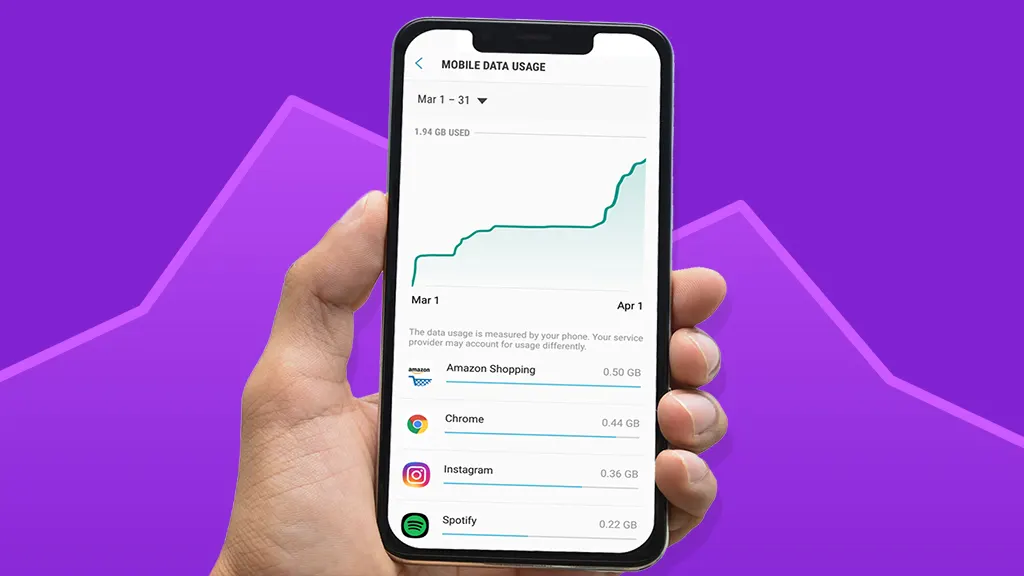
You’ll see a graph showing your total usage for the current billing period, along with a per-app breakdown below it.
Step 2: Set Your Billing Cycle Date
At the top of the data usage screen, you can set your billing cycle start date. This matters — Android counts data from that date, so the numbers actually match what your carrier charges you.
Tap Billing cycle or Data warning & limit, then enter the day your plan resets each month.
Step 3: Check Per-App Usage
Scroll down past the graph and you’ll see every app listed with how much data it’s used during the period. Tap any app to see its foreground (when you’re using it) and background (when it’s running behind the scenes) usage separately.
Background data is often the surprise culprit. An email app syncing every 5 minutes can use more data than your actual email reading.
Step 4: Set a Data Warning or Limit
Still on the Data warning & limit screen:
- Data warning — Android sends a notification when you hit a set amount.
- Data limit — Android turns off mobile data automatically when you reach the limit.
These are genuinely useful, especially if you’re on a fixed plan in Nigeria, Kenya, or South Africa where overage charges or throttling happen quickly.
How to Check Data Usage on iPhone
Apple tracks data usage in a slightly different way. It doesn’t reset automatically unless you tell it to, which means the number you see might reflect months of usage rather than your current billing period.
Step 1: Open Settings and Tap Cellular
- Open the Settings app.
- Tap Cellular (or Mobile Data on iPhones set to non-US regions).
You’ll see your total Current Period data usage at the top of the screen.
Step 2: Check the Billing Period Reset Date
Under the data total, you’ll see a small label: Current Period and below it, Current Period Roaming. Scroll all the way down to find the Last Reset date — this is when iPhone last started counting.
If that date is from six months ago, your number is not useful. Tap Reset Statistics at the very bottom of the page to start fresh from today.
Set a reminder on your calendar to reset it each month on your billing cycle date.
Step 3: See Which Apps Are Using the Most Data
Below your total usage, every installed app is listed with its individual data consumption for the current period. The list is sorted alphabetically by default, so you’ll need to scroll to find the heavy hitters.
Apps you use constantly (YouTube, TikTok, WhatsApp) tend to top the list, but background refresh from news or social apps can add up in ways you’d never notice.
Step 4: Turn Off Cellular Data for Specific Apps
Unlike Android, iPhone lets you disable mobile data for individual apps directly from this screen. Just toggle off any app you don’t want using your cellular connection.
This is useful for apps like Dropbox or Google Photos that like to sync large files over mobile data when you’re not paying attention.
Which Apps Use the Most Mobile Data?
Across both platforms, the same categories tend to cause problems:
Video streaming (YouTube, Netflix, TikTok, Instagram Reels) accounts for the majority of mobile data consumption for most users. Even at standard definition, an hour of YouTube uses roughly 700MB.
Cloud backup apps (Google Photos, iCloud, Dropbox) will upload everything on your camera roll over mobile data if you don’t specifically restrict them to Wi-Fi only.
Messaging apps with auto-download on (WhatsApp, Telegram) download every photo and video sent to you by default. In active group chats, this gets out of hand fast.
App updates running in the background can consume hundreds of megabytes. Both Android and iPhone let you restrict updates to Wi-Fi only in your app store settings.
How to Reduce Data Usage on Android
- Go to Settings > Network & internet > Data Saver and enable it. Android will restrict background data for all apps except the ones you whitelist.
- In the Play Store, go to Settings > Network preferences > Auto-update apps and set it to Over Wi-Fi only.
- For YouTube, open the app, tap your profile, go to Settings > Video quality preferences and set mobile data quality to Data saver.
How to Reduce Data Usage on iPhone
- Go to Settings > Cellular and disable Wi-Fi Assist (this feature automatically switches to mobile data when Wi-Fi is weak, which burns data without you knowing).
- Go to Settings > App Store and turn off App Downloads over cellular.
- In WhatsApp, go to Settings > Storage and Data > Media Auto-Download and set photos and videos to download on Wi-Fi only.
- Enable Low Data Mode by going to Settings > Cellular > Cellular Data Options > Low Data Mode. This pauses automatic updates and background tasks.